🖥️Install Browser Extension
Overview
Install the Tibo browser extension to detect and redact sensitive information in your prompts. The extension flags security risks, such as:
Customer PII
Installation options
There are three ways to install the extension and enroll employee browsers:
Managed: Perform a managed installation to deploy the extension to employee machines using device management software.
Email: Allow employees to self-enroll by sending them a link to install the extension via email.
Chat : Allow employees to self-enroll by sending them a link to install the extension via chat.
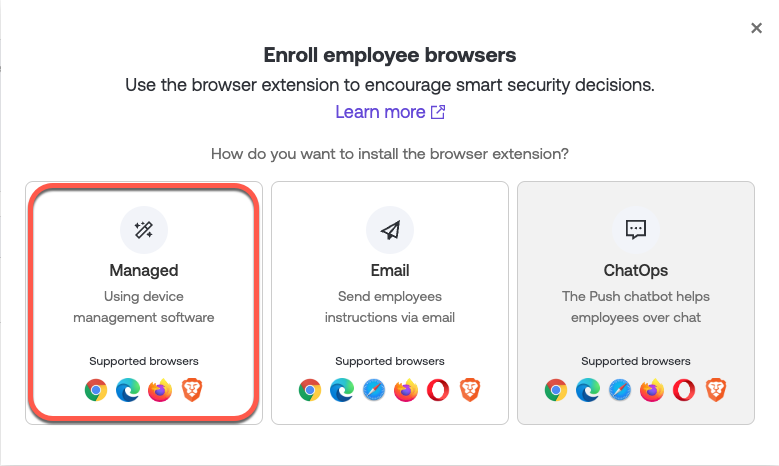
Managed installation
Perform a managed installation of the Tibo browser extension to add the extension to your employees’ browsers without any action required from them.
Enrolling an employee’s browser in Tibo via a managed deployment is a two-step process: First, you install the Tibbo browser extension. Next, the extension waits for user login to help identify the user of the browser and complete enrollment.
Supported browsers:
Google Chrome
Microsoft Edge
Deployment options:
Google Admin Console managed Chrome
Microsoft Group Policy managed Chrome and Edge
Device management software on Windows for Chrome and Edge. Documented example is for Microsoft Endpoint Manager (Intune).
Device management software on macOS for Chrome and Edge
Related help article
How to undo a Group Policy-managed Tibo browser extension rollout
Tracking your progress
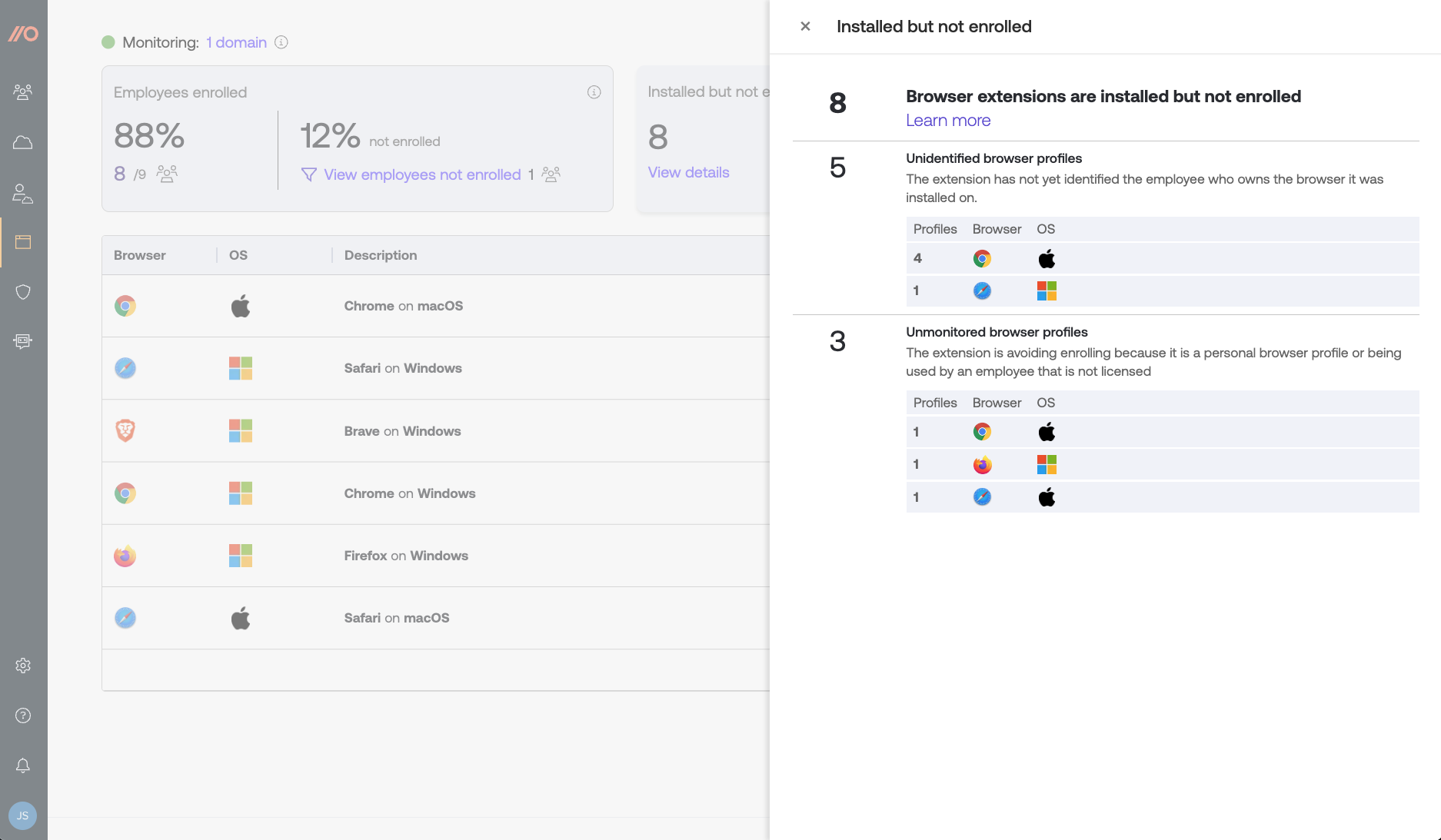
You can check the status of your rollout on the Browsers page in the admin dashboard. The section Installed but not enrolled tracks which browsers haven’t yet identified the user in order to complete enrollment and show up in Push.
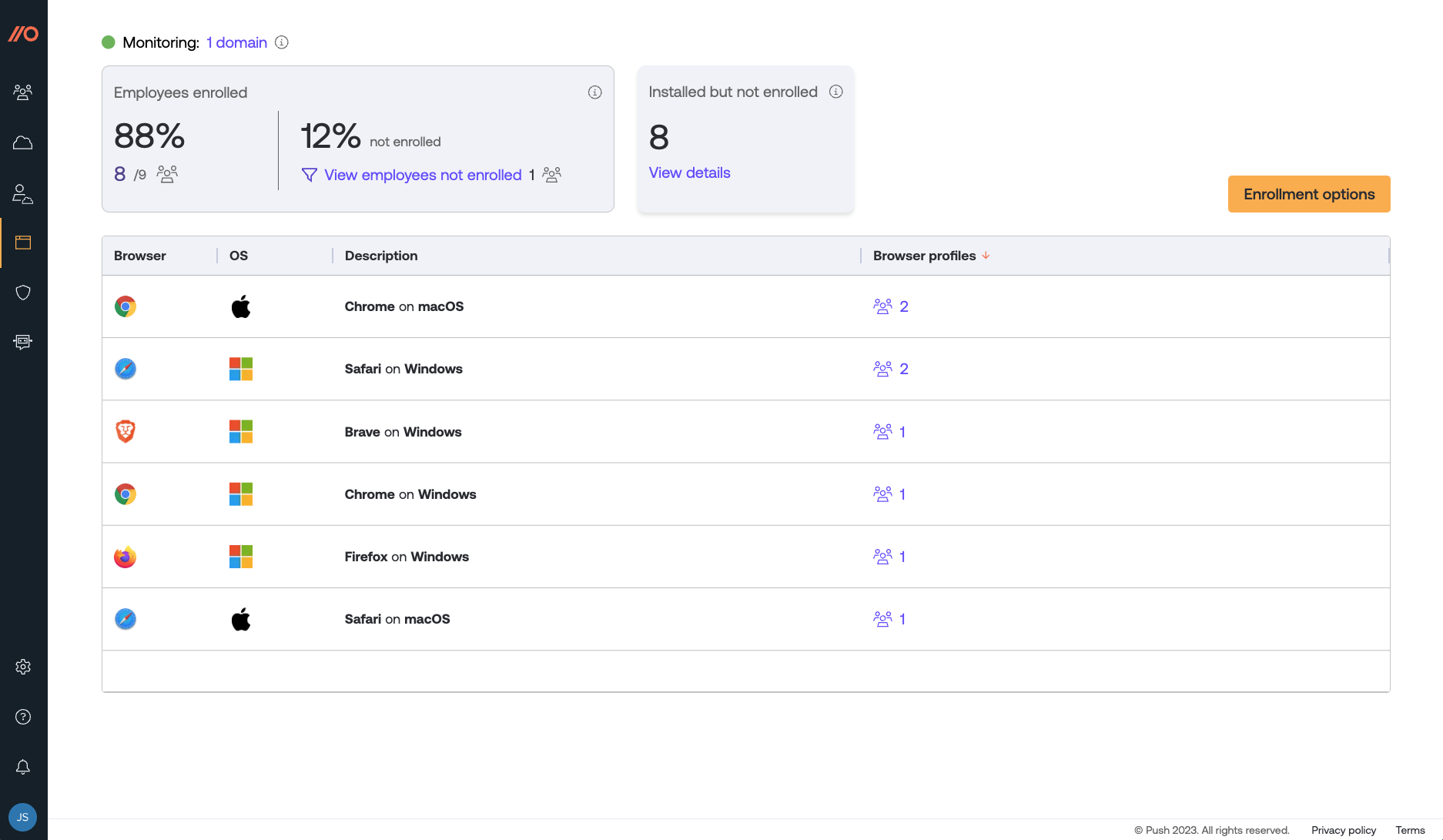
You can also use this status to identify browser profiles that the Tibo extension is avoiding enrolling because they’re a personal browser profile or are being used by an employee without a license in Tibo.
Related help article
Self-enrollment via email
Send instructions to employees via email to install the extension and complete enrollment of their browser in a single step. This process takes about a minute.
Supported browsers:
Google Chrome
Microsoft Edge
Send enrollment emails:
1. Log into the Tibo admin dashboard.
2. Go to the Browsers page in the left sidebar and then select Enrollment options > Email as the enrollment option.
3. You’ll be taken to a view of all your employees with a license in Push. Select who you’ll send an email enrollment link to. You can also preview the enrollment email on this page by clicking on Preview email.
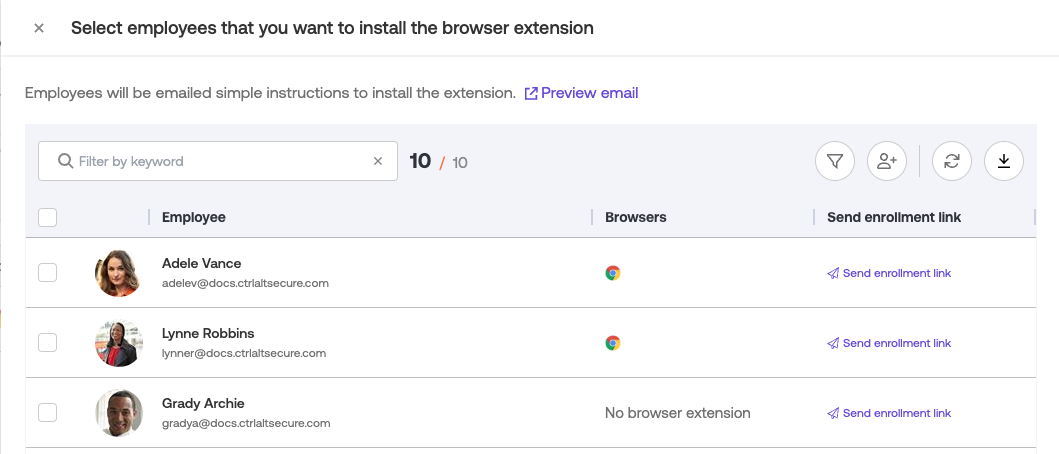
4. Emails will be sent immediately. To complete installation of the extension, employees should click on the Secure your browser link in the email on each browser they use for work.
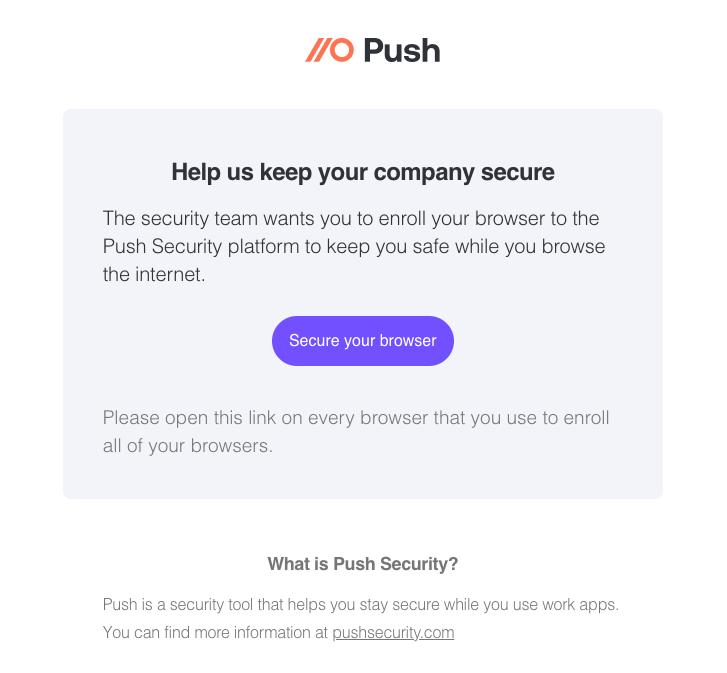
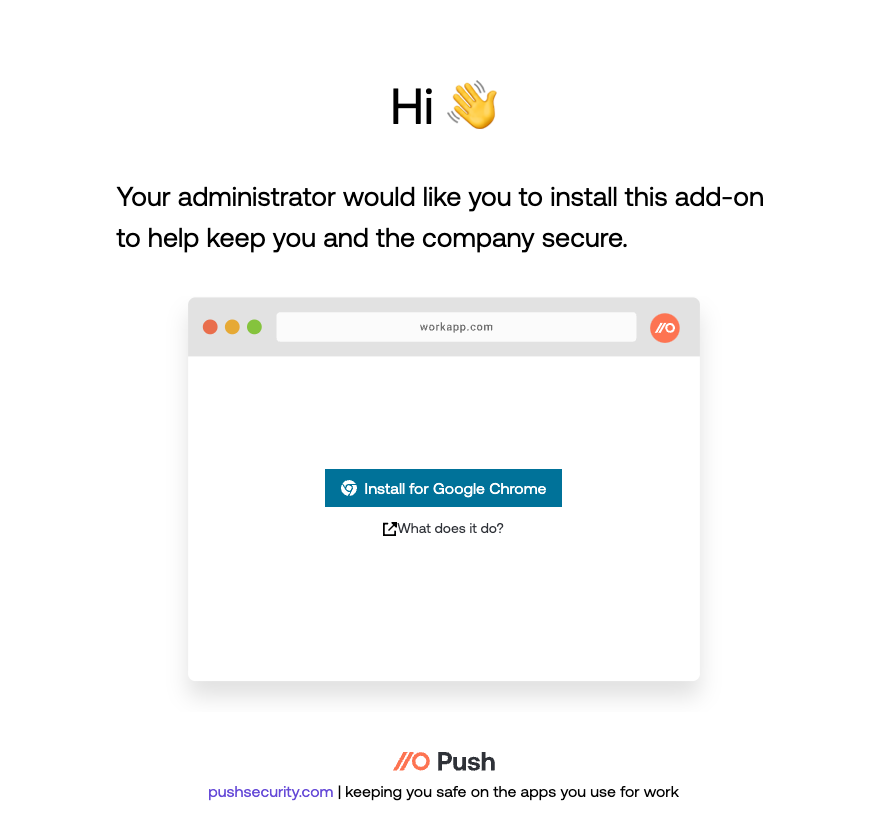
5. The link will take them to the extension installation page for their browser where they can install the extension, completing enrollment of their browser in Push.
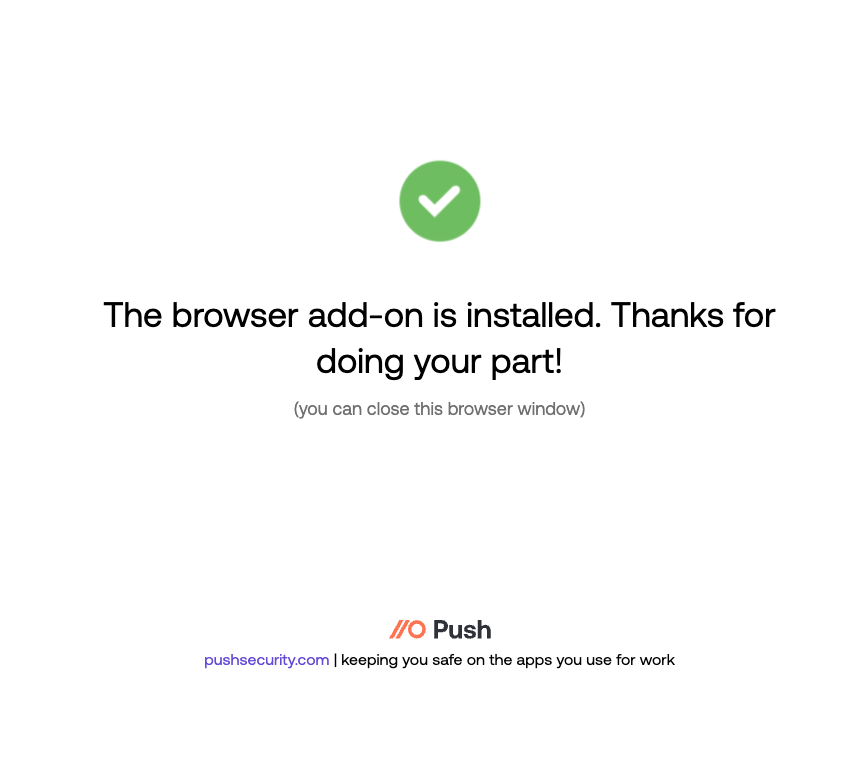
6. After they install the extension, they’ll see a confirmation message.
Version updates
The Tibo browser extension automatically updates when new versions are released. You do not need to take any action to apply these updates.
Related help article
How do I determine what version of the Tibo browser extension is installed?
Remove the extention
If you want to remove the browser extension, you have two options:
For self-enrolled extensions completed via email or chat by the employee, the employee will need to manually delete the extension from their browser. Removing the extension this way does not delete their activity data from the Tibo admin dashboard. If you wish to delete their activity data, you can revoke their account license. This will remove all their data from the Tibo platform, including data collected via IdP integrations and the browser extension. Note: If you delete your team on the Settings page of the admin dashboard, this will cause all these browser extensions to unenroll and delete themselves.
For extensions installed via a managed deployment, you can use your device management software to remove the extension. Depending on the software, this method may remove the extension without deleting it on the Tibo side. In that case, the browser will still be associated with the employee record and will still appear in the admin console. It will expire and be removed after 90 days, which is the usual inactivity period for browsers. Note: If you delete your team on the Settings page of the admin console, this will also cause all these browser extensions to unenroll. You will need to remove the extension from your managed policy in order to delete the extension from managed browsers.
You can also unenroll a given browser profile for an employee by opening the slide-out panel for that employee and clicking on Browser profiles, then select the trash icon next to the profile you wish to unenroll from the browser extension.
Now, you've got Tibo setup. Let's have a play.
Last updated