👉Sign-up & Add your team
You can sign up for a Tibo account on tibo.ai. Choose your username and password or use a social login to sign up. We recommend you use a Microsoft 365 or Google Workspace social login when signing up to use Tibo.
The Tibo platform distinguishes between employee and administrator accounts:
Administrators manage the Tibo platform and has the permission to upgrad/downgrade others (as administrators).
Employees install the browser extension to safeguard their AI acess (administrators as well). You must then assign a license to employees whose activity you wish to observe.
We strongly recommend having at least two administrators in your organization. This will help your organization maintain access to the Tibo dashboard in the event of staff departure. You should also routinely audit the administrators who have access to your Tibo dashboard.
You can add employees to Tibo in one of the following two ways:
Manually adding employees by sending them an invitation link to join your organization.
Syncing your identity provider (Microsoft 365 or Google Workspace) to import employee details and then manually assigning licenses to employees you want to add to Tibo .
You may also skip it for now, and do it later. See Manage Organization.
In order to gain a full inventory of your organization and employees, you must perform both an IdP integration and the installation of the Tibo browser extension on employee browsers in your environment. They each play a role in providing full visibility:
The IdP integration provides a view across your company, e.g. the organization structure
The Tibo browser extension makes sure the employee has Tibo enrolled.
Add manually
You can add employees manually. We recommend this approach if you are testing Tibo with your team before completing a rollout to your entire organization.
To add employees manually:
1. Log into the Tibo dashboard.
2. Navigate to the Employees page in the left sidebar and click the Add employees icon.
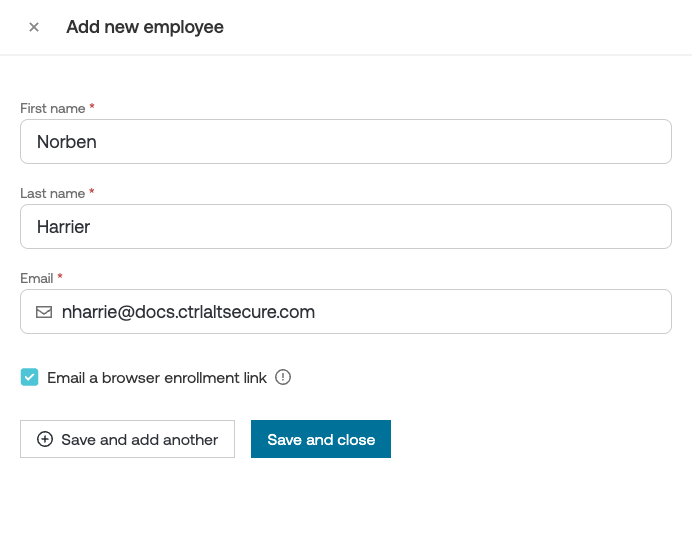
3. Select Add manually and enter the employee’s name and email address. You can also optionally email them an enrollment link to install the browser extension at the same time.
Integrate with Microsoft 365 or Google Workspace
Prerequisites: To complete the API integration, you’ll need an administrator role in M365 or Google Workspace with permission to complete OAuth integrations. For Microsoft, this is the global administrator role. For Google, it is the Super Admin role.
To integrate with Microsoft 365 or Google Workspace:
1. Log into the Tibo dashboard.
2. Navigate to the Apps page in the left sidebar.
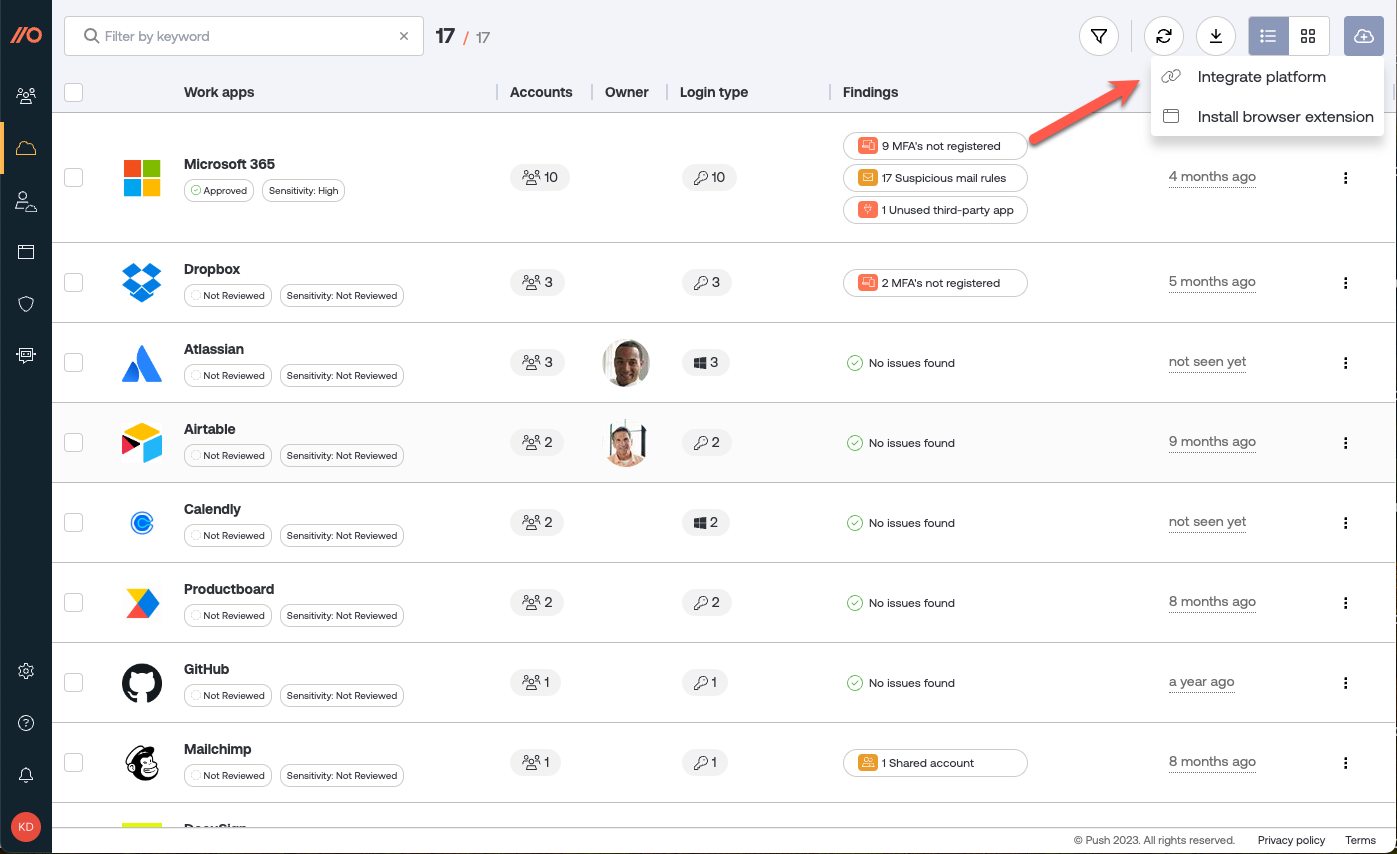
3. Click the Integrate platforms button on the setup modal, or select the Cloud with a plus sign button in the top right corner and choose Integrate platform.
4. On the slide-out panel, select Microsoft 365 or Google Workspace.
5. To view or adjust permissions associated with the integration, click on Need more control over access permissions?
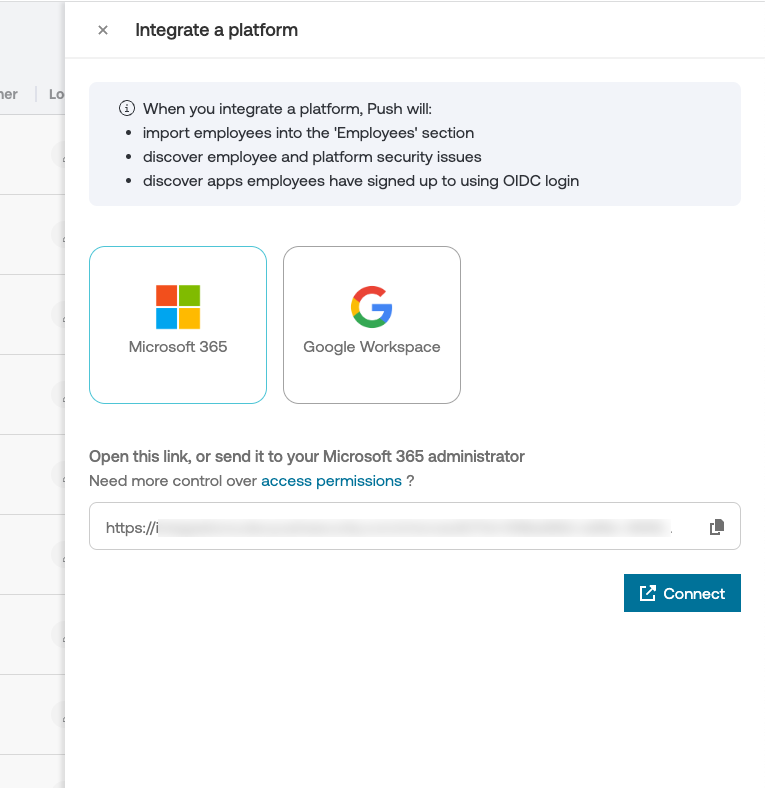
6. If you’re not the administrator of the work platform, you can share the provided integration link with your admin to complete the setup. Otherwise, click Connect to proceed.
7. Consent to the OAuth integration screen. For Google Workspace, you'll also need to give permission to Tibo through domain-wide delegation.
8. Wait a moment for Tibo to pull in the employee data.
9. Select which employees you want to license in Tibo.
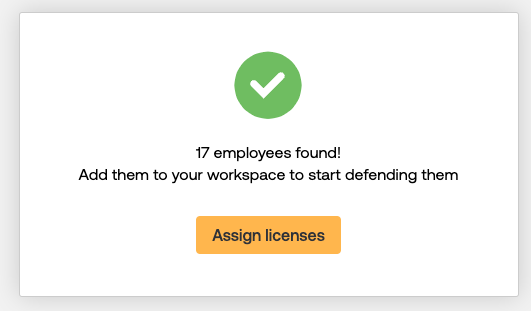
10. After you’ve assigned licenses, you’ll find a list of your employees on the Employees page, where you will start to see which AI apps they’re accessing, as well as any alerts they triggered.
Related Articles
Assign License
Tibo offer three plans:
For small teams and startups
10 free licenses
2 browser / license
For growing business
$10/month/license
4 browsers / license
Up to 200 licenses
For enterprise
Self-hosting option
200+ licenses
When you sign up, you would subscribe the Team plan by default. Tibo will grant you 10 free licenses as part of the team plan. When someone joined your organization, Tibo will automatically allocate an idle license to him/her. If there is no license available, Tibo will notify you (as the administrator of the organization) to purchase additional licenses.
Auto-assign option
By default, Tibo will automatically assign a license (if available) when a user joined. To turn off the auto-assign option, go to Settings > Licensing and toggle on automatic licensing.
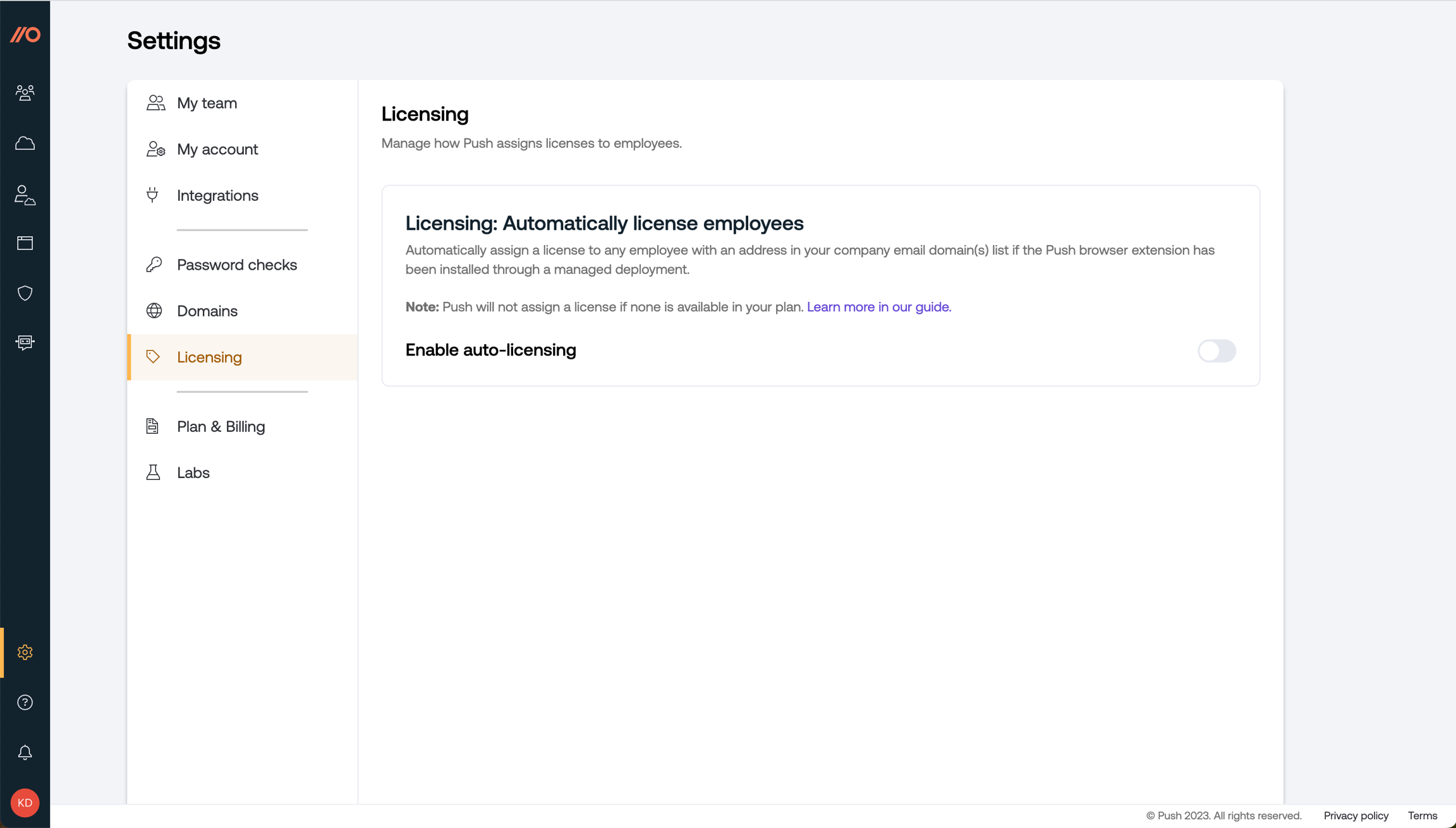
The Tibo browser extension is able to identify the user of a browser by looking for an email address from an open Gmail or Microsoft Outlook browser tab.
Once the browser extension identifies the user, Tibo will automatically create the employee account in the Tibo platform and assign a license. The user will then appear in the list on the Employees page.
Note: Tibo will not assign a license if none is available in your plan. Unlicensed employees will appear in the Unlicensed list linked from the Employees page.
Next, let's install the Tibo browser extension for your organization.
Last updated